How Can We Help? Let’s Talk!
How does Cookiebot work?
Cookiebot is a comprehensive, user-friendly solution that helps your website comply with global privacy regulations, including GDPR and CCPA. It automatically scans your site to detect and categorize cookies, then displays a customizable cookie consent banner that informs your visitors and allows them to control which categories they consent to.
When adding new content from third parties—such as YouTube videos, scripts in Google Tag Manager, or embedded iframes and javascript snippets—these third-party scripts may require extra steps for compliance.
Adding tags in Google Tag Manager
Specific tags have built-in consent checks and no other configuration is needed for those. Other tags require a custom event and additional consent to be configured. See 2. Controlling cookies. In Google Tag Manager
- Tags that would have been setup with the All Pages trigger will use the Custom Event: cookie_consent_update
- Tags with any other trigger needs a Trigger Group created including Custom Event: cookie_consent_update
Adding content on the website that includes a script or iframe
https://support.cookiebot.com/hc/en-us/articles/4405978132242-Manual-cookie-blocking
- Embedded JavaScript on the website requires updating the type attribute and adding a data-cookieconsent attribute based with the appropriate categories: “preferences”, “statistics”, and “marketing”.
- External elements like iframes on the website require changing the src attribute to data-cookieblock-src and adding the data-cookieconsent attribute.

Checking Compliance
Review the Monthly Cookiebot Report
Cookiebot runs a monthly scan and creates a report that will highlight potential compliance issues. The items can be addressed by reaching out to Orbit Support. Please note this is billable work. Alternatively you can address these items yourselves by following the steps listed below.
Login to your Cookiebot Account → Reports to see the results from the latest monthly scan.
Uncategorized or Unknown Cookies
Issue: Cookies or scripts that Cookiebot could not automatically categorize
- Cookies → Click on the cookie name (or script) labeled “Unknown”.
- Assign it to the correct category (e.g., Preferences, Statistics, Marketing) based on the cookie’s purpose. The best way to do this is to contact the platform providing the script.
- Save your changes.
Cookiebot documentation: https://support.cookiebot.com/hc/en-us/articles/360004177554-Check-your-unclassified-cookies
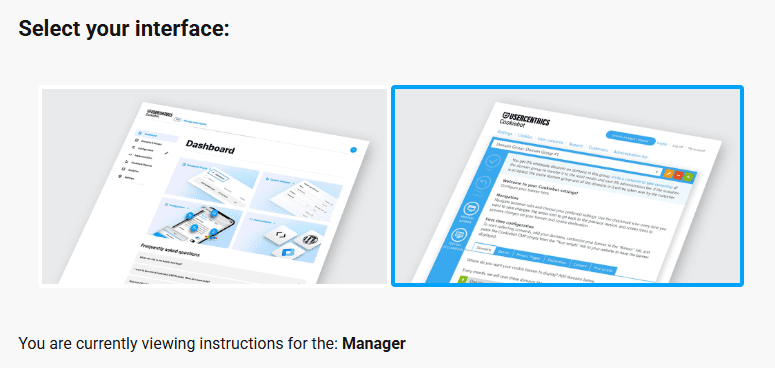
Select the Manager interface option on the right
Scripts Detected That Are Not Blocked
Issue: A script is flagged as being loaded before consent is given. Blocked until accepted by user: No
- Ensure the script is not being triggered by a default “All Pages” trigger in GTM.
- Update the GTM tag to rely on Cookiebot’s consent triggers or variables.
- Verify the script is categorized under the correct Cookiebot category.
Need help navigating compliance?
We’ll walk you through the tools, setup, and best practices to meet your legal obligations with confidence.